- Your cart is empty
- Continue Shopping


Fixing IMOU HR12F 5GHz Wi-Fi Issue – Firmware & Channel Optimization Guide
-
 By
CCTV Camera Shop
By
CCTV Camera Shop - Posted on
- Tutorials

The IMOU HR12F AC1200 Dual-Band Wi-Fi Router is a popular choice for home and small office networking due to its stable performance and dual-band support. However, many users report a common issue where the 5GHz Wi-Fi network does not appear, connects poorly, or delivers unstable speed.
In this guide, we explain why the IMOU HR12F 5GHz issue happens and show you exactly how to fix it using firmware updates and proper wireless channel configuration.
Common IMOU HR12F 5GHz Problems
Users experiencing issues with IMOU HR12F often report:
- 5GHz Wi-Fi SSID not visible on phone or laptop
- Device fails to connect to 5GHz network
- Very low speed on 5GHz compared to 2.4GHz
- 5GHz works on some devices but not others
These issues can be confusing, especially when the router clearly supports dual-band Wi-Fi.
Why IMOU HR12F 5GHz Wi-Fi Stops Working
In most cases, the problem is not a hardware fault.
The main reasons include:
- Outdated router firmware
- Unsupported 5GHz wireless channels
- Region-based channel restrictions
- Default auto-channel selection not supported by all devices
Some smartphones and laptops do not support certain high-frequency channels, causing them to completely hide the 5GHz network.
✅ Best Solution: Update IMOU HR12F Firmware
Firmware updates are the most effective fix for IMOU HR12F 5GHz issues, as they improve channel compatibility and overall stability.
Step 1: Access Router Admin Panel
- Connect your device to the router (Wi-Fi or LAN)
- Open a browser and enter:
http://192.168.10.1 - Log in using your admin username and password
(Default credentials are printed on the router label)
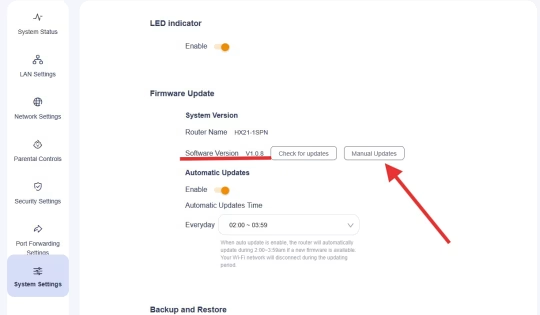
Step 2: Check & Upgrade Firmware
- Navigate to System Settings → Firmware Upgrade
- Check your current firmware version
- If a newer version is available, install it
- Do not power off the router during the update
🔔 Firmware upgrades usually fix:
- 5GHz Wi-Fi visibility issues
- Speed and stability problems
- Device compatibility bugs
Optimize 5GHz Wireless Settings (Important)
After updating the firmware, configure the 5GHz settings properly.
Recommended Settings:
- Wireless Band: 5GHz
- Channel:
- Auto (Recommended)
- Or manually select: 36, 40, 44, 48, 149, 153, 157, 161
- Channel Bandwidth: 80MHz
- Security: WPA2/WPA3
These channels are widely supported by most smartphones, laptops, and smart devices.
If the Issue Still Exists
Try these additional troubleshooting steps:
- Perform a factory reset
- Re-set Wi-Fi name (SSID) for both bands separately
- Reboot the router after configuration
- Restart client devices
- Ensure your device supports 5GHz / 802.11ac Wi-Fi
Final Thoughts
The IMOU HR12F 5GHz Wi-Fi problem is almost always caused by firmware or wireless channel compatibility, not by faulty hardware.
Once you:
- Update the firmware
- Use supported 5GHz channels
- Apply correct wireless settings
You will experience:
- Faster Wi-Fi speeds
- Stable 5GHz connectivity
- Better performance for streaming, gaming, and CCTV cameras
About IMOU
IMOU is known for its smart security and networking products. Keeping firmware updated is essential to get the best performance from IMOU routers.
Download The Firmware
Download The Firmware